If you’ve heard that switching to Cloudflare’s free 1.1.1.1 DNS can speed up browsing and improve privacy, the next question is usually the same: should I add Cloudfire DNS on PC or on router? The right answer depends on how many devices you want covered, how much control you have over your network, and how much setup effort you’re willing to put in.
This guide walks through how DNS works at each level, the real pros and cons of both methods, and which setup fits your situation, whether that’s a single laptop, a full household, or a gaming rig where every millisecond counts.
What Is Cloudflare (1.1.1.1) DNS and Why It Matters
Every time you visit a website, your device needs to translate that address into a numerical IP address. This job is handled by a DNS resolver, essentially the internet’s phonebook.
By default, that job goes to your internet service provider. Many ISPs log this data, use it for advertising, or simply run slower resolvers than necessary. Cloudflare’s public DNS resolver was built to fix that. It’s a free, fast, privacy-focused resolver that doesn’t sell browsing data and has been independently audited for privacy compliance.
Switching to it typically means:
- Faster page-load times in many cases
- Better privacy, since your ISP no longer sees every site you visit
- Optional malware and adult-content filtering through 1.1.1.2 and 1.1.1.3
These benefits stay the same no matter where you install it. What changes is how many devices actually get to use them.
How DNS Works on a PC vs. a Home Router
Before deciding where to add Cloudflare DNS, it helps to know what’s happening at each level.
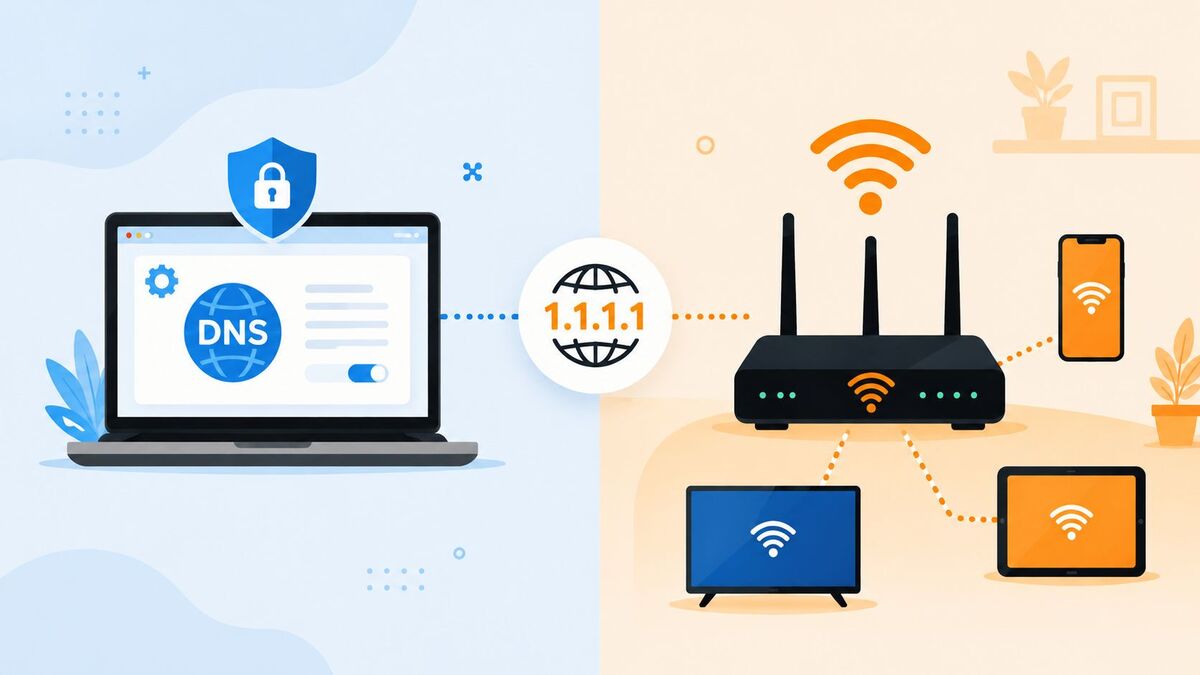
On a PC, DNS settings live in the network adapter configuration. Changing it there means only that device sends requests to Cloudflare. Every other device on your network, like phones, smart TVs, or a partner’s laptop, keeps using whatever DNS your router or ISP assigns by default.
On a router, DNS settings apply at the network’s entry point. Every device connected to that Wi-Fi or Ethernet network automatically inherits the same resolver, with no individual configuration needed.
In short: PC-level changes are personal and isolated. Router-level changes are shared and automatic. That difference drives the entire decision.
Should I Add Cloudfire DNS on PC or on Router?
This really comes down to scope. Ask yourself: do you want this to affect just your device, or your whole home network?
- If you only care about your own speed and privacy and don’t want to touch shared equipment, set it on your PC.
- If you want every device at home, including phones, tablets, smart TVs, and consoles, to benefit without configuring each one, set it on your router.
There’s no single correct answer here; it depends on your situation. Someone on a shared dorm or office network might prefer the PC method since they don’t control the router. A household managing ten or more connected devices will usually get more value from the router method, since it protects the whole network with one setup.
Setting Up Cloudflare DNS on Your PC (Step-by-Step)
Adding Cloudflare DNS to a single PC takes about two minutes and only needs standard admin access.
On Windows:
- Open Settings > Network & Internet > Change adapter options
- Right-click your active connection and select Properties
- Select Internet Protocol Version 4 (TCP/IPv4), then click Properties
- Choose “Use the following DNS server addresses”
- Enter 1.1.1.1 as preferred and 1.0.0.1 as alternate
- Click OK and restart your browser
On macOS:
- Go to System Settings > Network
- Select your active connection, then click Details
- Open the DNS tab
- Add 1.1.1.1 and 1.0.0.1
- Click OK and apply
This method is fast and fully reversible, and it doesn’t touch any shared network hardware, which makes it a good way to test whether Cloudflare DNS actually improves your experience before rolling it out further. The same principle applies to phones and tablets. For step-by-step instructions, see our guide on how to change DNS server on iPhone and Android.
Configuring Cloudflare DNS Directly on Your Router
If you’d rather set it once and forget about it, router-level configuration is the more efficient long-term option.
General steps (varies by router brand):
- Open a browser and enter your router’s IP address, commonly 192.168.1.1 or 192.168.0.1
- Log in with your admin credentials
- Locate the DNS settings, usually under WAN or Internet setup
- Replace the existing DNS entries with 1.1.1.1 and 1.0.0.1
- Save and reboot the router
Once this is done, every device that connects to your network, now and in the future, automatically uses Cloudflare DNS with no additional setup. This is especially useful for smart home devices that don’t offer manual DNS configuration at all.
PC-Level DNS: Benefits and Limitations
Benefits:
- Quick to set up and just as quick to undo
- No router login or admin access required
- Ideal for shared or public networks like coffee shops, offices, or dorms
- Lets you test Cloudflare DNS without affecting anyone else
Limitations:
- Only protects the one device you configured
- Needs to be repeated on every additional device
- Offers no benefit to phones, consoles, or smart TVs sharing your Wi-Fi
Router-Level DNS: Benefits and Limitations
Benefits:
- Applies to every connected device automatically
- One-time setup covers your entire household
- Useful for devices that don’t support manual DNS changes, like smart plugs, TVs, or consoles
Limitations:
- Requires router admin access, which not everyone has, especially renters or shared housing
- Slightly more technical to configure
- A router reset can revert the setting, requiring reconfiguration
Speed, Privacy, and Security: Which Setup Wins?
There’s no real speed difference between the two methods. Cloudflare’s servers respond just as fast whether the request comes from your PC or your router. What differs is coverage. That said, if your connection still feels slow after switching, the issue is usually something else entirely. Check our guide on how to fix slow DNS lookup for deeper troubleshooting steps.
For privacy, router-level setup has the edge, since it shields every device on your network from ISP-level tracking, not just one. For security, especially if you’re using Cloudflare’s malware-blocking option (1.1.1.2), router-level protection is more valuable, since it covers devices like smart TVs and IoT gadgets that often lack built-in security features.
If your priority is network-wide privacy, the router method wins. If you just want a quick, no-commitment test on one machine, the PC method is more convenient.
Can You Use Cloudflare DNS on Both PC and Router?
Yes, and in some cases it’s the smart move. Setting Cloudflare DNS on your router covers your whole household by default. Setting it again on your PC acts as a backup: if that laptop connects to a different network later, at a friend’s house, a café, or an office, it will still prioritize Cloudflare DNS instead of falling back to whatever that new network offers.
This layered approach gives you consistent protection at home and on the go, without any conflict between the two settings.
Should I Add Cloudfire DNS on PC or on Router for Gaming or Streaming?
Gamers and streamers ask this often because DNS resolution speed can shave milliseconds off connection times, which matters for competitive play and reduces buffering.
For a single gaming PC, setting Cloudflare DNS directly on that machine is usually enough. You get the speed benefit without touching shared network settings.
For consoles like PlayStation or Xbox, manual DNS configuration is possible but more tedious through system settings. In that case, applying Cloudflare DNS at the router level is more practical, since it automatically applies to your console, streaming devices, and everything else on the network.
If your household streams on multiple devices at once, like smart TVs, tablets, and laptops, router-level DNS is the more efficient long-term solution.
Common Cloudflare DNS Setup Mistakes to Avoid
- Forgetting to flush your DNS cache after making changes, which can make it seem like the switch didn’t work
- Only updating IPv4 settings and ignoring IPv6, which lets some devices bypass Cloudflare DNS entirely
- Skipping the connection test. Cloudflare offers a simple check at 1.1.1.1/help to confirm the switch worked
- Applying router-level changes without saving admin credentials somewhere safe, which makes future troubleshooting harder
- Assuming router changes apply instantly. Some routers need a reboot before the new DNS settings take effect
Which Option Is Right for You?
If you’re managing your own device and want a quick, reversible test, set Cloudflare DNS on your PC. If you’re responsible for a household with multiple devices and want consistent, low-maintenance coverage, set it on your router. If you want both, layering the two setups gives you network-wide coverage at home plus personal protection wherever else you connect.
FAQs
Does adding Cloudflare DNS slow down my internet?
No. In most cases it maintains your current speed or improves it slightly, since Cloudflare runs one of the fastest public DNS networks available.
Is it safe to change DNS settings on my router?
Yes, as long as you’re using a reputable resolver like Cloudflare’s 1.1.1.1. The change only affects how domain names are resolved and doesn’t expose your network to additional risk.
Will changing DNS on my PC affect other devices on the same Wi-Fi?
No. PC-level DNS changes only apply to that device. Other devices keep using the network’s default DNS unless changed separately.
Can I switch back to my old DNS settings later?
Yes. Both PC and router DNS settings can be reverted anytime by selecting “Obtain DNS automatically” on a PC or restoring default settings on a router.
Do I need a Cloudflare account to use 1.1.1.1 DNS?
No. The 1.1.1.1 and 1.0.0.1 addresses work immediately without any sign-up.
Conclusion
So, should I add Cloudfire DNS on PC or on router? It comes down to how much coverage you need. PC-level setup is quick and personal, and a good way to test things out. Router-level setup takes a little more effort upfront but protects every device on your network without repeating the process. For most households, the router method offers better long-term value, but there’s nothing stopping you from using both. Either way, switching to Cloudflare DNS is a simple, free way to browse faster and more privately.