If websites won’t load properly, show outdated content, or keep throwing errors, someone has probably told you to flush your DNS. But what does flush DNS do, and is it actually safe to clear your DNS cache?
This guide explains what happens on your device when you flush DNS, why it works, when you should use it, and how to do it safely on Windows, Mac, and Android.
What Does Flush DNS Do to Your Computer’s Network Settings?
Every time you visit a website, your device translates that website’s name (like google.com) into an IP address, the actual location of the server hosting the site. This is handled by DNS, or the Domain Name System.
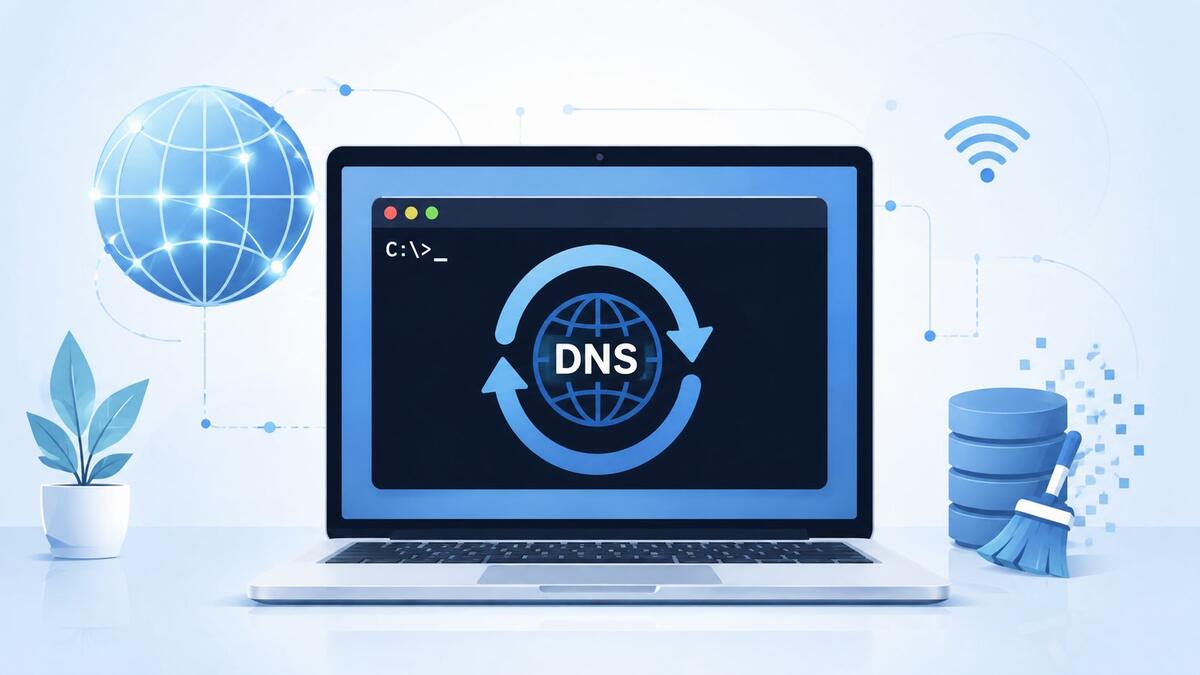
To save time, your device stores recent lookups in a temporary DNS cache instead of asking a DNS server every single visit. Flushing DNS simply clears that stored information.
Flushing DNS doesn’t change your network settings, IP address, or internet connection. It only clears a local file your device uses to speed up website loading, similar to clearing browser history, but for website addresses instead of pages you’ve visited.
Understanding DNS Cache: What It Stores and Why It Matters
The DNS cache works like a shortcut list. Once your device looks up a website’s IP address, it saves that result locally so it doesn’t need to ask again on your next visit.
The cache typically stores:
- The website’s domain name
- Its corresponding IP address
- A time-to-live (TTL) value that tells your device how long the entry stays valid
This speeds up browsing significantly. Without a DNS cache, your device would need a fresh lookup every time you visited any site, even ones you check daily.
The downside is that this cache can hold onto outdated or incorrect information, especially after a website changes servers or a lookup gets interrupted by a network issue.
Why Does Your Device Need to Clear DNS Cache in the First Place?
If DNS cache speeds things up, why clear it at all? A few common situations create the need:
- A website recently changed hosting providers or IP addresses. Your device may still try reaching the old address, causing an error or a broken page.
- The cache holds corrupted or incorrect entries, often from software bugs, malware, or interrupted downloads.
- You’re troubleshooting a DNS_PROBE_FINISHED error or similar, which usually points to a DNS resolution problem.
- You’ve switched DNS providers (like Google DNS or Cloudflare) and want your device to use the new settings right away instead of old cached results. If you’re still deciding where to make that switch, see our guide on should I add Cloudflare DNS on PC or on router, which breaks down the pros and cons of each option.
In each case, flushing DNS forces your device to perform a fresh lookup and pull the most current information available.
Is It Safe to Clear DNS Cache? What You Need to Know
Yes, clearing your DNS cache is safe. It’s a routine maintenance step, similar to restarting an app that’s misbehaving.
Flushing DNS does not:
- Erase your browsing history
- Affect saved Wi-Fi networks
- Change your IP address
- Uninstall or reset any software
The only real effect is that your device performs fresh DNS lookups the next time you visit websites, which can make the very first page load slightly slower than usual. After that, things return to normal, often faster and more accurate than before.
Common Signs You Should Flush Your DNS Cache Today
Flushing DNS isn’t something you need to do regularly, but certain signs suggest it’s worth trying:
- Websites you know are online show “site can’t be reached” errors
- You’re redirected to the wrong website unexpectedly
- Pages display outdated content even after the site has clearly updated
- You recently changed DNS servers and want the new settings applied immediately
- IT support asked you to flush DNS as part of troubleshooting
Your DNS cache is now cleared, and Windows will perform fresh lookups for any site you visit going forward. You can find more details on this ipconfig /flushdns command in Microsoft’s official documentation.
How to Flush DNS on Windows
- Press the Windows key, type cmd, then right-click Command Prompt and choose Run as administrator.
- Type:
ipconfig /flushdns - Press Enter.
- You’ll see a confirmation: “Successfully flushed the DNS Resolver Cache.”
Your DNS cache is now cleared, and Windows will perform fresh lookups for any site you visit going forward.
How to Clear DNS Cache on Mac and Android
On Mac:
- Open Terminal (Applications > Utilities).
- Type:
sudo dscacheutil -flushcache; sudo killall -HUP mDNSResponder - Enter your Mac password when prompted (it won’t show characters as you type; that’s normal).
- Press Enter. The cache clears instantly.
On Android:
Android doesn’t offer a direct flush DNS command like desktop systems, but you can get the same result by:
- Turning Airplane Mode on and off to reset active network connections
- Restarting your device
- Clearing the cache within your browser app’s settings
These steps aren’t as direct as the Windows or Mac method, but they effectively refresh your device’s network data.
What Happens Right After You Flush the DNS Cache?
Once cleared, your device starts fresh for website lookups. Here’s what to expect:
- The next website you visit triggers a brand-new DNS lookup instead of using stored data
- This first lookup may take slightly longer than usual
- Previously broken or outdated connections should resolve correctly, assuming DNS was the actual cause
If sites still won’t load properly after flushing DNS, the issue likely lies elsewhere, such as your router, ISP, or the website’s own server.
Does Flushing DNS Fix Slow Internet or Loading Errors?
Flushing DNS can fix certain loading errors, but it isn’t a universal fix for slow internet.
It helps with:
- Websites showing outdated content
- “This site can’t be reached” errors caused by stale IP data
- Redirect issues after a site changes servers
- DNS-specific browser error messages
It won’t help with:
- Slow internet caused by your ISP or bandwidth limits
- Router hardware issues
- Weak Wi-Fi signal
- Website downtime unrelated to DNS
If your DNS lookups themselves feel slow rather than broken, flushing your cache is only the first step. For a complete fix, see our guide on how to fix slow DNS lookup, which covers switching to a faster DNS provider and updating your router settings.
Common Mistakes to Avoid When Resetting DNS Cache
- Not running Command Prompt as administrator on Windows. Without admin rights, the flush command may fail silently.
- Expecting instant results without restarting your browser. Some browsers keep their own separate DNS cache.
- Assuming it fixes everything. DNS flushing solves DNS-related issues specifically, not every internet problem.
- Typing the command incorrectly. A small typo returns an error instead of clearing the cache.
- Forgetting it’s temporary. Your device naturally rebuilds a new DNS cache as you keep browsing, and that’s expected.
What Does Flush DNS Do vs. Restarting Your Router?
These two actions are often confused, but they solve different problems.
| Action | What It Clears | Best Used For |
| Flushing DNS | Your device’s local DNS cache | Website-specific loading errors, outdated site data |
| Restarting your router | Your router’s connection to your ISP | General internet slowness, dropped connections, network outages |
If only one website is giving you trouble, flushing DNS is the more targeted fix. If your whole connection feels sluggish or unstable, restarting your router addresses a different part of the problem. Many troubleshooting guides recommend both together since they cover different possible causes.
FAQs
Does flushing DNS delete my browsing history?
No. It only clears stored website IP address data. Your history, bookmarks, and saved passwords stay untouched.
How often should I flush my DNS cache?
There’s no set schedule. Most people only need to do it when troubleshooting a loading error or after switching DNS providers.
Will flushing DNS disconnect me from the internet?
No. Your connection stays active. You might notice slightly slower loading on the next few sites you visit, but you won’t lose connectivity.
Can flushing DNS fix a “DNS server not responding” error?
Sometimes. This error often points to outdated or corrupted cache entries, so flushing DNS is a good first step.
Is flushing DNS the same as resetting my router?
No. Flushing DNS only affects your device’s local cache. Resetting your router affects your entire network and every connected device.
Conclusion
So, what does flush DNS do? It clears the temporary storage your device uses to remember website addresses, forcing a fresh lookup next time you browse, a safe, quick fix for DNS errors, outdated pages, and broken links.
It won’t solve every internet issue, but when DNS is the cause, flushing your cache is often all it takes to fix the problem.