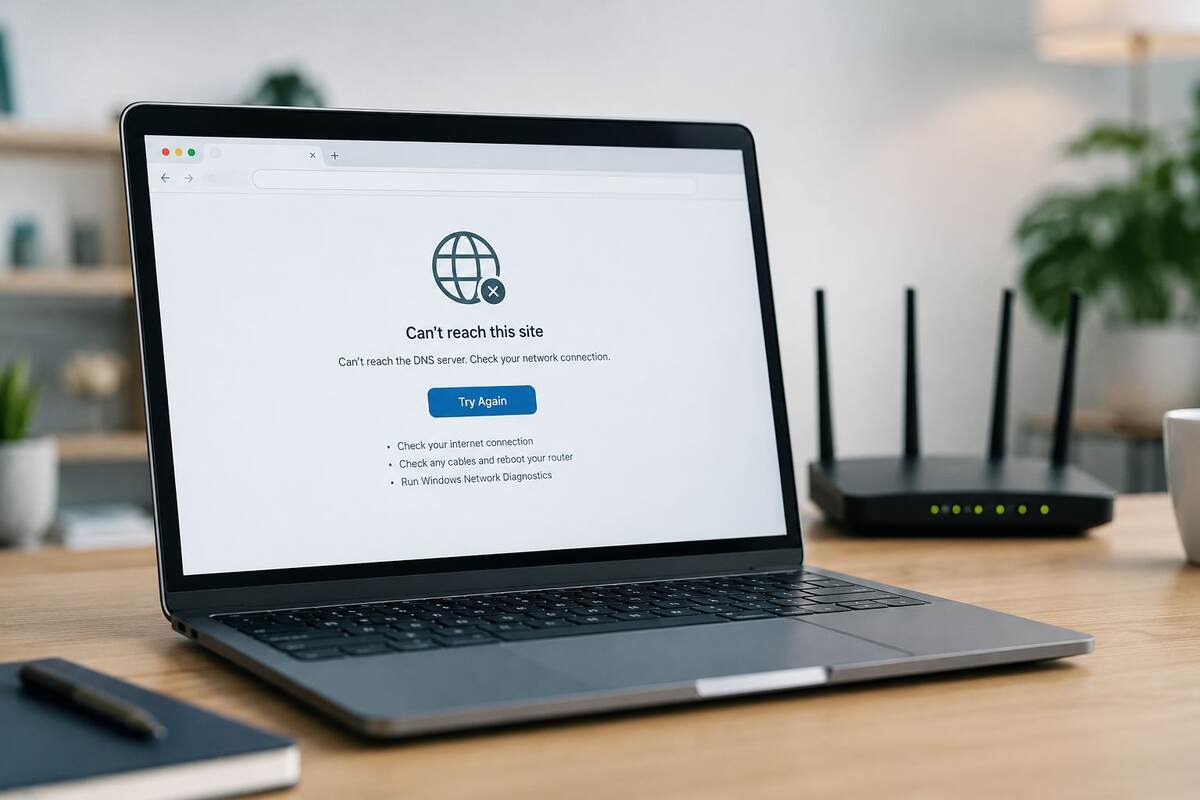
If you just switched Wi-Fi networks and your browser is now refusing to load anything, you may be seeing an error that says you can’t reach DNS server. It’s a common issue, and it’s usually easy to fix without contacting your ISP or resetting your router.
This happens because your device’s DNS settings don’t always update cleanly when you move between networks. In most cases, you can resolve it in a few minutes.
Here’s what causes it, the fastest fixes to try first, and what to do if the error keeps coming back.
Why Switching Wi-Fi Networks Can Break Your DNS Connection
Every time you connect to a new network, your device requests fresh settings, including which DNS server to use. DNS translates website names like “google.com” into the IP addresses your device needs to load a page.
When you switch networks, a few things can go wrong:
- Your device keeps using old DNS settings from the previous network
- The new router hasn’t finished assigning settings yet
- A cached DNS entry conflicts with the new network
- The network adapter doesn’t reset properly during the switch
Most of the time, this is temporary. If it keeps happening every time you change networks, there’s usually a setting worth fixing permanently, which we’ll cover further down.
What Does “Can’t Reach DNS Server” Mean?
This error means your device can’t find a working DNS server to translate the website address you typed. It’s not necessarily an internet outage. Your Wi-Fi connection can be active while the DNS lookup still fails.
The error shows up differently depending on the browser or device:
- Chrome: “DNS_PROBE_FINISHED_NXDOMAIN” or “Can’t reach this page”
- Windows: “DNS server isn’t responding”
- Android: “Can’t reach DNS server” pop-up
- Mac: “You are not connected to the internet,” even when Wi-Fi is on
All of these point to the same issue: something is breaking down in the DNS lookup process.
Quick Fixes to Try First
Try these before touching any settings. They solve the problem in most cases, especially right after a network switch.
- Forget the Wi-Fi network and reconnect. This forces your device to request fresh settings instead of reusing old ones.
- Turn Wi-Fi off and back on. This resets your device’s connection to the router.
- Restart your device. This clears temporary network glitches.
- Wait 30 seconds and try again. The network may still be assigning settings.
If none of these work, move on to the fixes below.
Restart Your Router and Wi-Fi Adapter
If the quick fixes didn’t help, the issue may be on the network side rather than your device.
To restart your router:
- Unplug it for a full 30 seconds instead of using a reset button
- Plug it back in and wait for the lights to stabilize, usually 1 to 2 minutes
- Reconnect your device and try loading a website
To reset your Wi-Fi adapter:
- Windows: Settings > Network & Internet > Status > Network reset
- Mac: Turn Wi-Fi off in the menu bar, wait 10 seconds, then turn it back on
A full router restart clears its temporary memory and often resolves DNS conflicts that build up over time.
Flush and Reset Your DNS Cache
Your computer stores recent DNS lookups locally to speed things up. If that cache holds outdated information from your previous network, it can keep causing errors even after you’ve switched.
On Windows:
- Open Command Prompt as Administrator
- Type
ipconfig /flushdnsand press Enter - You’ll see a confirmation that the cache was flushed
On Mac:
- Open Terminal
- Type
sudo dscacheutil -flushcache; sudo killall -HUP mDNSResponder - Enter your password when prompted
This clears stale entries and forces your device to fetch fresh DNS information. If you’re curious what’s actually happening behind the scenes and whether it’s safe, we cover that in detail in our flush DNS guide.
Confirm Whether the Problem Is Your Network or the Website
Before troubleshooting further, rule out whether the issue is limited to one site.
- Try loading two or three different websites. If none load, the issue is your network’s DNS setup.
- Try a different device on the same Wi-Fi. If it also fails, the problem is likely the router, not just your device.
- Try mobile data instead of Wi-Fi. If sites load fine, you’ve confirmed it’s a Wi-Fi issue.
This quick check saves time by pointing you to the right fix.
Switch to a Public DNS Server
The DNS server assigned by your router or ISP can sometimes be slow or misconfigured. Switching to a public DNS server is one of the most reliable long-term fixes, especially if you change networks often.
Two trusted options:
- Google DNS: 8.8.8.8 and 8.8.4.4
- Cloudflare DNS: 1.1.1.1 and 1.0.0.1
On Windows:
- Control Panel > Network and Sharing Center > Change adapter settings
- Right-click your active connection > Properties
- Select “Internet Protocol Version 4 (TCP/IPv4)” > Properties
- Choose “Use the following DNS server addresses” and enter the numbers above
On Mac:
- System Settings > Network > Wi-Fi > Details
- Click DNS and add the addresses manually
This one change often removes the ‘can’t reach DNS server’ error for good, especially on networks with unreliable default DNS. If your sites are loading slowly rather than failing completely, check out our guide on how to fix slow DNS lookup for speed-specific fixes.
Update Network Drivers and Adapter Settings
If this error happens across multiple networks, not just after one Wi-Fi change, outdated network drivers could be the cause.
- Windows: Device Manager > Network adapters > right-click your Wi-Fi adapter > Update driver
- Mac: System Settings > General > Software Update
Outdated drivers sometimes fail to fully release old network settings when switching Wi-Fi, which is a common reason this error keeps coming back.
Fix the DNS Error on Mobile Devices
Phones and tablets run into this too, especially when switching between Wi-Fi networks or moving between Wi-Fi and mobile data.
On Android:
- Settings > Network & Internet > Wi-Fi
- Tap the connected network > Modify network
- Switch IP settings from DHCP to Static
- Enter 8.8.8.8 as the DNS 1 field
On iPhone:
- Settings > Wi-Fi
- Tap the (i) icon next to your network
- Tap Configure DNS > Manual
- Add 8.8.8.8 and 1.1.1.1 as DNS servers
Toggling Airplane Mode on and off often fixes this automatically by forcing a full network refresh, worth trying before editing DNS settings manually.
When to Contact Your ISP or Reset Your Router
If none of the steps above work, the issue may be outside your control.
Contact your ISP if:
- The error happens on every device connected to the network
- Other networks work fine, confirming it’s not your device
- Your ISP has had recent outages in your area
Consider a full router reset if:
- The router is old and hasn’t been updated in a while
- Multiple troubleshooting steps have failed
- You suspect a leftover misconfiguration from a previous setup
A factory reset wipes your saved Wi-Fi password and custom settings, so treat it as a last resort.
How to Prevent This Error After Future Wi-Fi Changes
Once fixed, a few habits can stop this error from returning:
- Set a public DNS server permanently on your most-used devices instead of relying on auto-assigned settings
- Keep your router firmware updated through its admin panel or app
- Avoid forgetting and rejoining networks unnecessarily, which can create conflicting saved profiles
- Restart your router every few weeks, especially if it stays on continuously
These small habits make it far less likely you’ll see this error the next time you switch networks.
FAQs
Why does my DNS server stop working after I change Wi-Fi networks?
Your device sometimes holds on to old settings or hasn’t finished receiving new ones from the router, creating a temporary mismatch.
Is “can’t reach DNS server” the same as having no internet?
No. Your Wi-Fi can be active while DNS lookups still fail, so you’re connected but can’t translate website names into working addresses.
Will changing my DNS server slow down my internet?
No. Public DNS servers like Google DNS and Cloudflare DNS are usually faster and more reliable than many default ISP servers.
Do I need to restart my router every time I switch Wi-Fi networks?
No. This is only necessary if the error persists after basic steps like reconnecting or flushing your DNS cache.
Can a VPN cause this DNS error?
Yes. VPNs sometimes override DNS settings. If the error started after connecting to a VPN, disconnect it and test your connection again.
Conclusion
Seeing a can’t reach DNS server error after switching Wi-Fi networks is usually a quick fix, not a serious problem. A reconnect, a DNS cache flush, or switching to a public DNS server like Google or Cloudflare solves it in most cases.
If it keeps happening, set a permanent DNS server and keep your router’s firmware updated. That one change is often all it takes to stop the error for good.