Seeing “DNS address could not be found” while browsing on Wi-Fi is a common issue, and it’s usually easy to fix. It doesn’t mean your internet is broken. In most cases, it means your device sent a request to look up a website’s address, but the response never came back.
This guide explains what causes the error on Wi-Fi and walks through simple, tested fixes, starting with the easiest ones, so you can get back online quickly.
What Does “DNS Address Could Not Be Found” Mean?
DNS (Domain Name System) works like the internet’s phone book. When you type a website name, your device asks a DNS server to find the matching IP address so it can load the page.
The error appears when that lookup fails. Your device sent the request, but no valid response came back. This usually points to a local issue, such as your router, network settings, or the DNS server your provider assigned, rather than a problem with the website itself.
Common Causes of DNS Errors on Wi-Fi Networks
A few issues cause this error most often:
- Router or modem glitches that build up over time
- An outdated DNS cache storing incorrect information
- Slow or temporarily down ISP DNS servers
- Incorrect network settings after an update or reset
- Outdated network drivers or router firmware
- VPN or proxy conflicts interfering with DNS requests
- Weak or unstable Wi-Fi signal
Most of these take just a few minutes to fix. Here’s how to work through them in order.
Quick Checks Before Troubleshooting
Rule out the obvious first:
- Test other devices. If your phone connects fine but your laptop doesn’t, the issue is with that device, not the network.
- Try a different website. If one site fails but others load normally, the problem is likely with that site, not your DNS.
- Confirm your Wi-Fi connection. Devices sometimes show as connected while actually running with no real internet access.
If every device and website is affected, move on to the fixes below.
Restart Your Router and Modem
This simple step fixes this error more often than any other method. Routers build up small memory errors over time, which can interrupt DNS requests.
- Unplug your router and modem.
- Wait a full 30 seconds.
- Plug the modem back in and let it reconnect.
- Plug the router back in and wait for the lights to stabilize.
- Reconnect your device and try loading a website.
A full power cycle clears temporary issues that a quick Wi-Fi toggle won’t fix.
Flush Your DNS Cache
Your device stores DNS lookups locally so it doesn’t have to repeat them. If that cache holds outdated or incorrect data, it can keep causing errors even after the original issue is resolved.
On Windows:
- Open Command Prompt as administrator.
- Type
ipconfig /flushdnsand press Enter. - Restart your browser.
On Mac:
- Open Terminal.
- Run
sudo dscacheutil -flushcache; sudo killall -HUP mDNSResponder - Enter your password when prompted.
This clears stale entries and forces a fresh DNS lookup. If your connection feels sluggish rather than fully broken, this guide on how to fix slow DNS lookup can help.
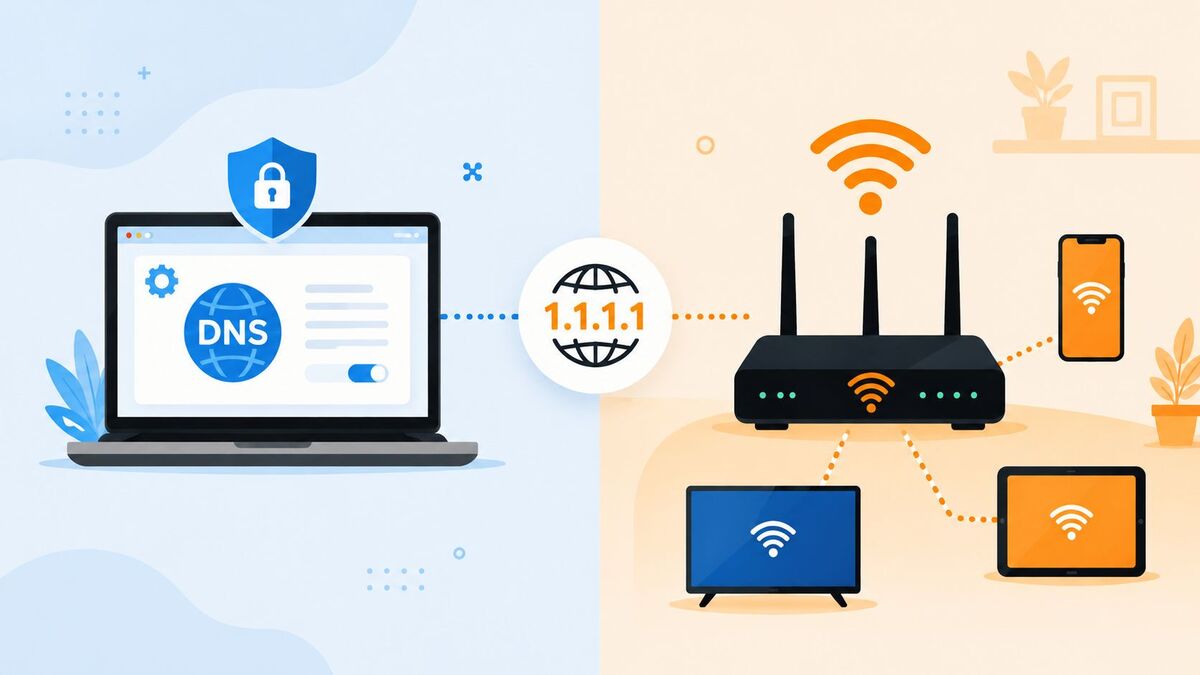
Switch to Google or Cloudflare DNS
Sometimes the DNS servers assigned by your internet provider are the actual problem, especially if they’re slow or briefly offline. Switching to a public DNS service often resolves the error right away.
Two reliable, free options:
- Google DNS: 8.8.8.8 and 8.8.4.4
- Cloudflare DNS: 1.1.1.1 and 1.0.0.1
Go to your network adapter’s IPv4 settings and enter these addresses manually instead of using automatic assignment. Many users also notice slightly faster browsing after switching.
Fix DNS Address Could Not Be Found on Windows Wi-Fi
If the steps above didn’t work, Windows has a few built-in tools worth trying:
- Run the Network Troubleshooter: Settings > Network & Internet > Status > Network Troubleshooter.
- Reset the network adapter: Open Command Prompt as administrator and run
netsh winsock reset, then restart your computer. - Disable and re-enable your Wi-Fi adapter: In Device Manager, find your Wi-Fi adapter, right-click, then select Disable and Enable again.
These steps clear corrupted network configurations that a basic restart can miss.
Reset Your Network Settings
A full network reset clears saved Wi-Fi passwords, DNS settings, and adapter configurations, then rebuilds them from scratch. It resolves deeper conflicts that individual fixes can’t touch.
On Windows: Settings > Network & Internet > Advanced Network Settings > Network Reset.
On Mac: System Settings > Network > Wi-Fi > Advanced, then remove and re-add your network.
You’ll need to re-enter your Wi-Fi password afterward.
Update Network Drivers and Router Firmware
Outdated drivers and firmware are an overlooked cause of DNS errors. Manufacturers regularly release updates that fix connectivity bugs like this one.
- Update network drivers: In Device Manager, right-click your network adapter and select “Update driver.”
- Update router firmware: Log into your router’s admin panel (often at an address like 192.168.1.1) and check under “Administration” or “System” for available updates.
If you’ve never updated your router’s firmware, this alone can resolve recurring issues.
Disable VPN or Proxy Settings Temporarily
VPNs and proxies route DNS requests through their own servers. If that server has issues, DNS lookups can fail even when your actual internet connection is fine.
Turn off your VPN or proxy and try loading a website again. If it works, the VPN was the cause. You can switch to a different server or check whether your VPN app has DNS-specific settings you can adjust.
Fix DNS Address Could Not Be Found on Mobile Wi-Fi
Phones and tablets run into this error too, though the fixes look a bit different.
- Forget and reconnect to the network: Open Wi-Fi settings, tap the network, select “Forget,” then reconnect and re-enter the password.
- Toggle Airplane Mode: Turn it on for 10 seconds, then off, to reset your device’s network connections.
- Set a manual DNS on Android: In Wi-Fi settings, tap and hold your network, select “Modify Network,” switch IP settings to “Static,” and enter 8.8.8.8 as the DNS.
- Set a manual DNS on iPhone: In Wi-Fi settings, tap the (i) icon next to your network, select “Configure DNS,” switch to Manual, and add 8.8.8.8.
If the error keeps returning, try moving closer to your router, since mobile devices are more sensitive to weak signals.
When to Contact Your Internet Service Provider
If none of the steps above fix the error, the problem may be outside your control. Contact your ISP if:
- Every device on your network shows the same error
- The issue started suddenly with no changes on your end
- Your ISP’s status page shows a known outage nearby
- Restarting your router and changing DNS servers both failed
Your provider can check for outages, line issues, or account problems that local troubleshooting can’t fix.
How to Prevent DNS Errors in the Future
A few habits can help keep this error from coming back:
- Restart your router every few weeks, even if it’s working fine
- Keep router firmware and network drivers up to date
- Use a reliable public DNS server instead of your default ISP DNS
- Avoid connecting too many devices to one router
- Flush your DNS cache periodically, especially after network changes
FAQs
Why does this error happen only on Wi-Fi and not mobile data?
It usually points to a router or local network issue. Mobile data uses a different DNS path through your carrier, so it often works even when Wi-Fi doesn’t.
Does this error mean my internet is down?
Not necessarily. Your connection can be working fine while only the DNS lookup fails.
Will changing my DNS server slow things down?
No. Public DNS servers like Google and Cloudflare are usually faster than default ISP servers.
Can a VPN cause this error consistently?
Yes, if the VPN’s DNS servers are unreliable. If disabling the VPN fixes it every time, consider switching providers or adjusting its DNS settings.
Does the error message look the same in every browser?
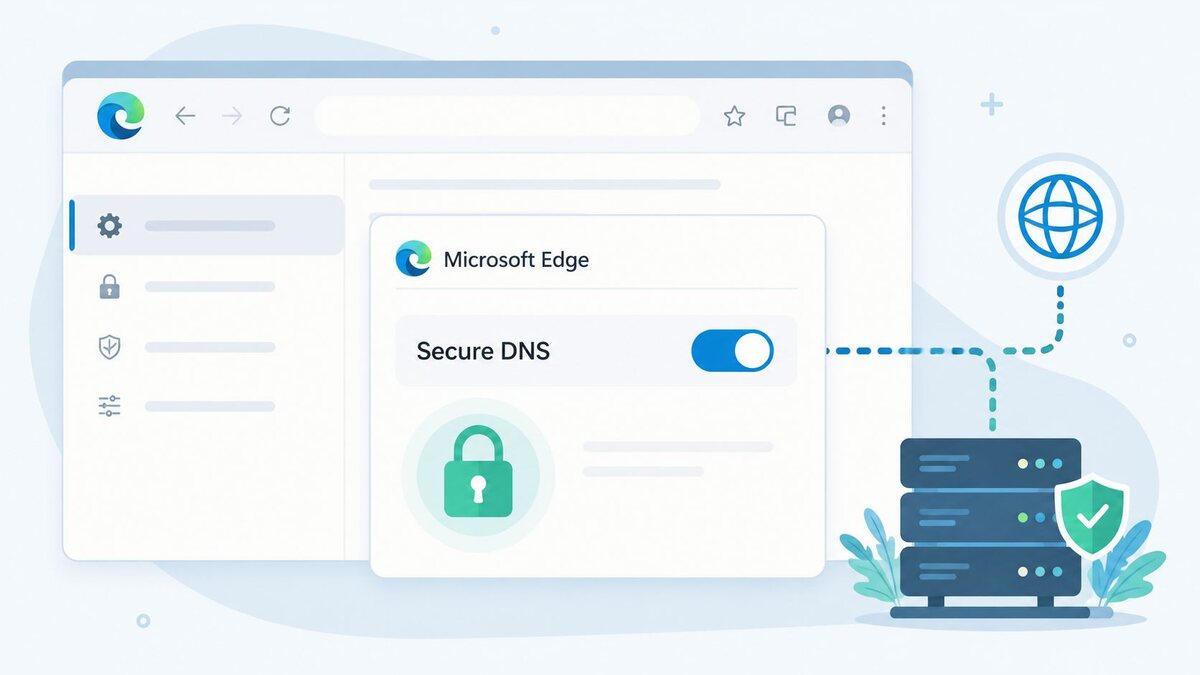
The wording varies slightly between Chrome, Firefox, and Edge, but the cause is the same: a failed DNS lookup.
Conclusion
“DNS address could not be found” is a common Wi-Fi error with straightforward fixes. Start with a router restart and a DNS cache flush, since these solve the issue most often. If it persists, switching to a public DNS server or resetting your network settings usually clears it up. And if nothing works, your ISP can check for problems on their end.