If you’ve opened Edge’s privacy settings and noticed a “Secure DNS” option, you’ve probably wondered: does Microsoft Edge use its own DNS server, or does it just rely on whatever DNS your computer already has? The answer depends on one setting.
This article explains how Edge handles DNS lookups, what Secure DNS actually does, how it compares to Chrome, and how to check or change the setting yourself.
Does Microsoft Edge Use Its Own DNS Server? (Quick Answer)
Not by default. Edge normally uses your system’s DNS, the same server assigned by your internet provider or router. It doesn’t replace that automatically.
Edge does include an optional feature called Secure DNS, also known as DNS-over-HTTPS (DoH). When you turn it on and select a provider, Edge starts sending its own DNS lookups through an encrypted connection to that provider instead of your default resolver.
In short: Edge can use its own DNS path, but only once you turn Secure DNS on.
What Is Secure DNS in Microsoft Edge?
Secure DNS encrypts the DNS lookups Edge makes when you visit a website. Normal DNS requests travel in plain text, so your ISP or anyone monitoring the network can see which sites you visit, even if the page itself loads over HTTPS.
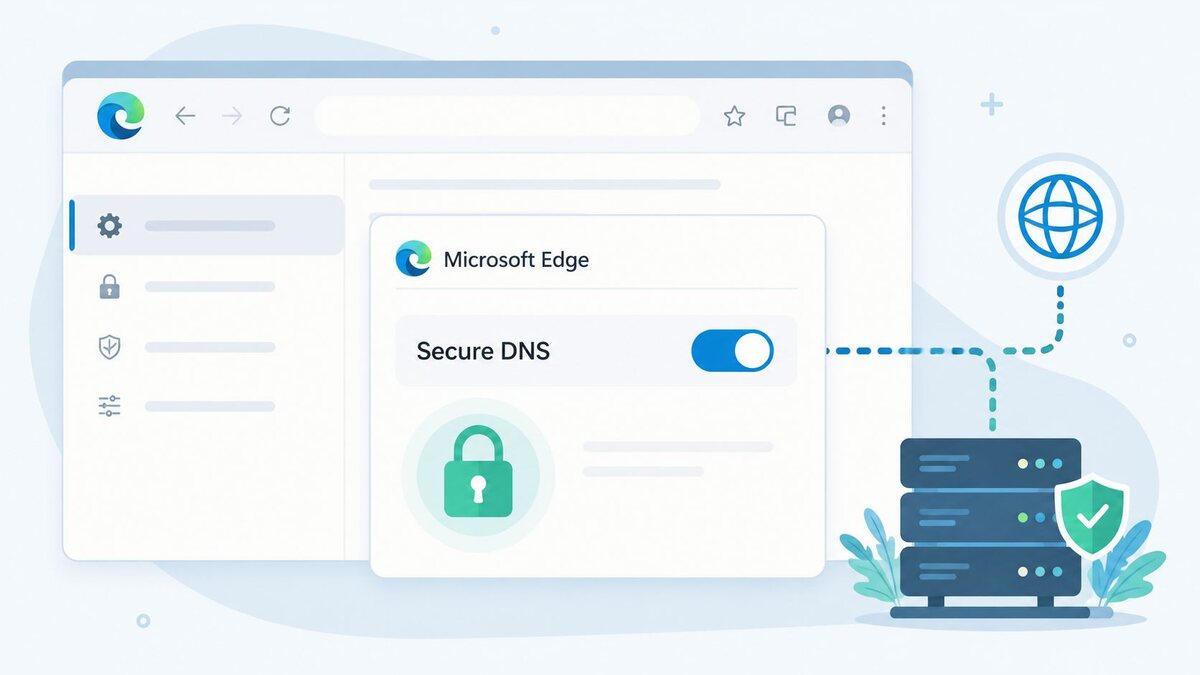
With Secure DNS turned on, those lookups are encrypted and harder to intercept or modify. You’ll find the setting here:
Settings → Privacy, search, and services → Security → “Use secure DNS”
You can let Edge automatically use your current provider’s encrypted DNS if supported, or choose a custom one.
How Edge’s DNS Settings Differ From Windows Defaults
Windows has its own DNS configuration, usually assigned by your router. By default, Edge simply uses that same system-level DNS.
The difference:
- System DNS applies to your entire device, including every app and background process.
- Edge’s Secure DNS setting only applies to lookups made inside Edge. Other apps and browsers keep using regular system DNS unless you configure encrypted DNS at the OS level too.
Turning on Secure DNS in Edge changes how Edge resolves domains. It doesn’t change anything else on your computer.
DNS-over-HTTPS (DoH): How It Works in Edge
DNS-over-HTTPS is the protocol behind Edge’s Secure DNS feature. Instead of sending DNS queries over the unencrypted port 53, DoH sends them through HTTPS on port 443, the same port used for secure web traffic.
What this means in practice:
- Your DNS query looks like normal encrypted web traffic to anyone monitoring the network.
- It’s harder for an ISP or network observer to see which domains you’re resolving.
- If the chosen DoH provider becomes unreachable, Edge may fall back to your regular DNS, depending on your configuration and policies.
You can choose from preset providers like Cloudflare, Google Public DNS, Quad9, or NextDNS, or enter a custom DoH template URL.
Edge vs Chrome: Comparing Built-In DNS Handling
Since Edge and Chrome share the Chromium engine, they handle DNS almost identically:
- Both default to your system’s DNS.
- Both offer a Secure DNS toggle with similar provider options.
- Both fall back to standard DNS if the encrypted provider is unreachable.
The main difference is management. Edge integrates more closely with Windows Group Policy and Microsoft Intune, so IT admins on Microsoft-based networks can enforce or lock DNS behavior more easily. For everyday users, the two browsers behave nearly the same.
Why Edge Might Bypass Your Router or ISP DNS
If your router runs custom DNS to block ads or filter content, Edge may not follow it. Here’s why.
When Secure DNS is on and pointed at a provider like Cloudflare or Google, Edge sends lookups directly to that provider and skips your router entirely. As a result:
- Router-level content filters may stop working in Edge.
- Parental control apps relying on DNS filtering can be bypassed.
- Ad-blocking DNS services, like a Pi-hole, may not catch Edge’s traffic.
This is expected behavior, not a bug. It’s worth knowing if you rely on network-wide filtering and notice it isn’t applying to Edge.
How to Check Which DNS Server Edge Is Using
- Open Settings → Privacy, search, and services → Security.
- Check the “Use secure DNS” toggle. If it’s off, Edge uses your system’s default DNS. If it’s on, note the provider listed below it.
- For technical details, visit edge://net-internals/#dns.
- Visit edge://policy to check if your organization has enforced any DNS-related settings.
How to Change or Disable Secure DNS in Edge
- Click the three-dot menu and select Settings.
- Go to Privacy, search, and services.
- Scroll to the Security section.
- Toggle “Use secure DNS” on or off.
- If turning it on, choose a provider or select “Enter custom provider” for a custom DoH URL.
- Open a new tab or restart Edge for the change to apply.
If the toggle is greyed out, your device is likely managed through Group Policy or Intune, and only an administrator can change it. This is controlled by Microsoft’s DNS-over-HTTPS mode policy, which lets organizations enforce or restrict Secure DNS settings across managed devices.
Does This Affect Parental Controls or Ad Blockers?
It can. Since Secure DNS reroutes lookups away from your network’s default resolver, filtering tied to that resolver may be skipped, including:
- Router-based parental controls
- Network-wide ad blockers like Pi-hole
- ISP-level content restrictions
- Some antivirus DNS filtering tools
If any of these suddenly stop working in Edge, check whether Secure DNS is enabled and consider disabling it or switching to a filtered DNS provider.
Is Using Edge’s Own DNS Server Safe for Privacy?
Generally, yes. Secure DNS stops your ISP from easily logging every site you visit and helps protect against certain attacks on public Wi-Fi.
A few things to keep in mind:
- You’re shifting trust from your ISP to your chosen DNS provider, so pick one with a clear privacy policy, such as Cloudflare or Quad9.
- It doesn’t hide your IP address from the sites you visit.
- On managed networks, enabling it without permission could interfere with security monitoring your organization relies on.
For most home users, Secure DNS with a trusted provider is a simple, low-risk privacy improvement.
If browsing feels slower after switching, the issue is usually fixable. This guide to fixing slow DNS lookup walks through quick checks like flushing your DNS cache or testing a different provider.
FAQs
Does Microsoft Edge use its own DNS server by default?
No. Edge uses your system’s existing DNS unless you turn on Secure DNS.
What DNS does Edge use if Secure DNS is off?
Whatever DNS your operating system or router has assigned, typically your ISP’s default.
Is Secure DNS the same as a VPN?
No. Secure DNS only encrypts DNS lookups. It doesn’t hide or reroute your browsing traffic like a VPN does.
Can I use a custom DNS provider in Edge?
Yes. Under Secure DNS settings, you can select a preset provider or enter a custom DNS-over-HTTPS URL.
Why is the Secure DNS toggle greyed out?
Your device is likely managed by an organization through Group Policy or Intune.
Does enabling Secure DNS slow down browsing?
Not noticeably. Most reputable DoH providers perform comparably to, or faster than, standard ISP DNS.
Conclusion
So, does Microsoft Edge use its own DNS server? By default, no. It relies on your system’s DNS unless you enable Secure DNS, which lets Edge send encrypted lookups to a provider like Cloudflare or Google instead. Whether you stick with the default or switch depends on how much you value ISP privacy versus compatibility with network-level filters. Either way, you now know exactly what’s happening behind Edge’s address bar.